Configuring Docker Desktop for WSL Integration
Stuck with Docker Compose errors on your Windows 11 Blockchain project? 🥲 It’s probably a WSL setup issue! I've been there. My new guide shows you step-by-step how to flawlessly integrate WSL with Docker Desktop. Say goodbye to config headaches!
The Problem: Docker Errors with WSL
You might encounter errors when trying to run docker commands from your WSL terminal if Docker Desktop isn’t correctly integrated. This usually happens when the necessary “WSL Integration”setting isn’t enabled.
Step 1: Install WSL on Windows 11
Open Command Prompt or PowerShell as Administrator and run:
wsl --install
To list available distributions:
wsl --list --online
To install a specific distribution (e.g., Ubuntu-22.04):
wsl --install -d Ubuntu-22.04
Step 2: Configure Docker Desktop for WSL
- Start Docker Desktop
- Open your installed WSL terminal (e.g., Ubuntu)
- Go to Docker Desktop → Settings → Resources → WSL Integration
- Enable:
Enable integration with my default WSL distro- Your specific distribution (e.g., Ubuntu)
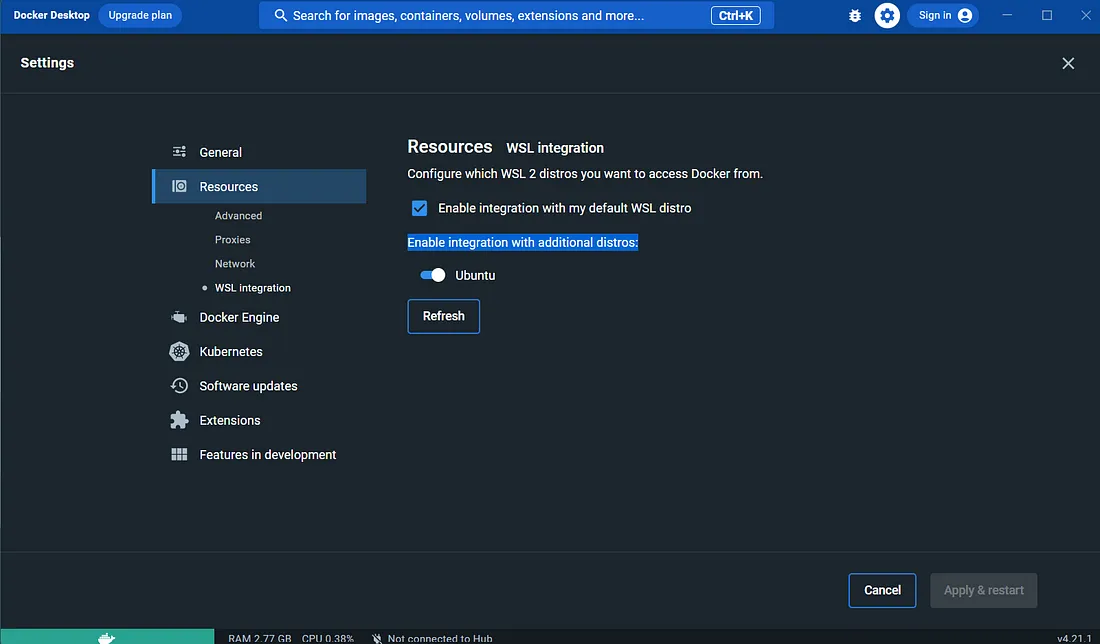
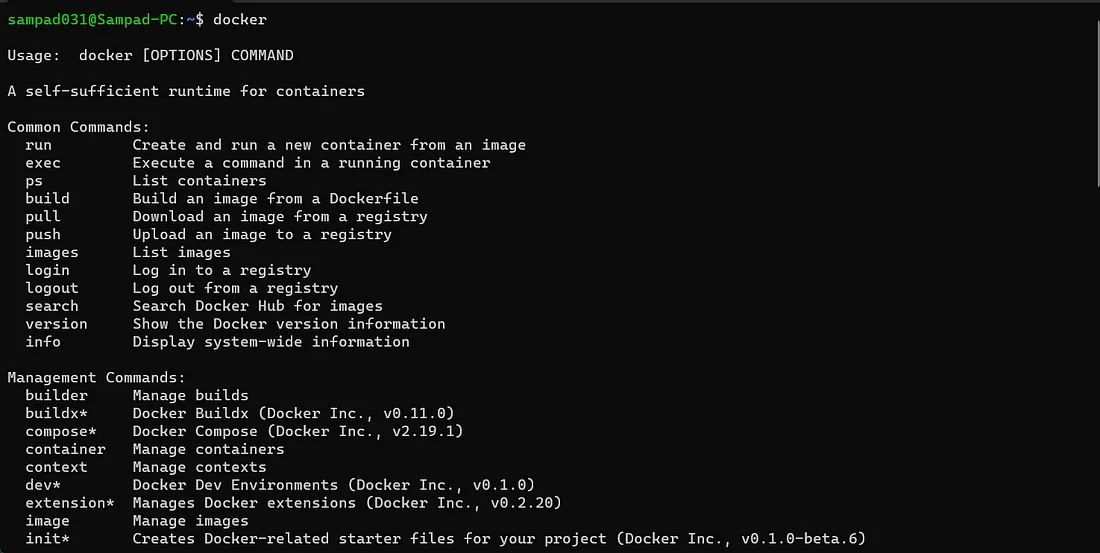
Now try running this command in your WSL terminal:
docker
If you see the Docker command list, it’s working!
Conclusion
🎉 You’ve successfully set up WSL on Windows 11 and configured Docker Desktop for it. Now you're ready to start building Blockchain apps using Docker Compose without setup errors. Happy coding!
Further Reading
For more in-depth information and official guidance, check out the following resources: